
How Teachers Can Make Educational Videos for Kids with AI
AI can turn a lesson idea into a short cartoon in an afternoon, but the teaching still has to come from you. Here's a practical workflow for objectives, accuracy checks, captions, multilingual classrooms, and student privacy.
By the ClipyToons teamUpdated 9 min read
Start with the lesson objective, not the tool
The fastest way to make a weak classroom video is to start with "let's make something fun with AI." The fastest way to make a strong one is to start with a single sentence: "By the end of this video, students will be able to..."
Good objectives for short videos are narrow:
- "...count objects from 1 to 10 and match each group to a numeral."
- "...name the three states of water and give one example of each."
- "...explain why taking turns helps everyone play."
Why narrow matters
A 1 to 3 minute video can teach one idea well. If your objective has "and" in it twice, split it into two videos. Short, focused clips are also easier to rewatch, pause, and discuss.
Decide where the video sits in the lesson
- Hook: a 30-second cartoon that raises a question you'll answer together.
- Model: a 1 to 2 minute explanation or demonstration.
- Review: a quick recap at the end of the week or before a quiz.
Knowing the job the video does keeps the script tight and stops the AI from wandering into extra material.
Review the script like you'd review a textbook page
AI tools can write a clean, friendly script in seconds. They can also get facts subtly wrong, pick vocabulary that's too hard, or choose an example that doesn't match your curriculum. The US Department of Education's report on AI in teaching and learning puts it clearly: educators need to keep their professional judgment and be able to override AI when it's wrong.
Before you approve any script, run this checklist:
Accuracy
- Are all facts, numbers, and definitions correct? Check anything you wouldn't swear to in front of a parent.
- Does the explanation match how your curriculum teaches it? (Methods for subtraction or letter sounds vary.)
- Are examples realistic? A "frog that lives in the desert" might be charming, but it's wrong.
Level
- Is the vocabulary right for your grade? Swap in words students already know, and introduce no more than two or three new terms.
- Are sentences short enough to follow at speaking speed?
Clarity and representation
- Does each scene clearly show the idea, not just talk about it?
- Are characters and settings inclusive, and free of stereotypes?
Tone
- Is it encouraging, never mocking a character for getting something wrong?
Edit freely. The script is a draft, and you're the subject expert.
Captions and accessibility
Captions are one of the easiest wins in classroom video, and they help far more students than you might think.
Who benefits
- Deaf and hard-of-hearing students, for whom captions are essential. The W3C's Web Content Accessibility Guidelines treat captions for prerecorded video as a baseline requirement.
- Early readers, who see spoken words matched to print.
- English learners and multilingual students, who can read along at their own pace.
- Everyone else. A research review by psychologist Morton Ann Gernsbacher, drawing on more than 100 studies, found captions improve comprehension of, attention to, and memory for video, for children and adults alike.
Practical caption tips
- Keep lines short. Short dialogue lines mean short caption lines that young readers can finish.
- Use the words you want students to learn. If the target vocabulary is "evaporate," make sure a character says it clearly.
- Pause and point. Stop the video on a key caption and have students read it chorally.
Beyond captions
- Describe important visuals out loud in the narration ("Now the ice cube is melting into a puddle") so students who can't see the screen well still get the idea.
- Avoid rapid flashing or cluttered scenes that make it hard to focus.
Educational videos for kids with AI in multilingual classrooms
One of the most practical things about educational videos for kids with AI is how quickly you can produce a version in another language. That can make a real difference for newcomers and for families who want to support learning at home.
How to approach it
- Keep one language per video. Mixing languages mid-video tends to confuse young viewers. Instead, make parallel short versions of the same lesson.
- Start with the language most students share, then create versions for the home languages represented in your class.
- Send home-language versions to families so they can talk about the lesson at home.
In ClipyToons specifically
Each project has one dialogue language: English (the default, and the most consistent) or one of 13 others: Spanish, Portuguese, French, German, Italian, Dutch, Polish, Czech, Norwegian, Japanese, Korean, Chinese (Mandarin), or Arabic. The script, spoken lines, and captions are in that language, and you set it before rendering.
Check every version
If you or a colleague speaks the language, watch the whole video before class. If no one does, ask a bilingual family member or staff member to review it. Pronunciation and word choice can vary, so a native speaker's quick check is worth the time.
For vocabulary lessons, consider making the same short scene in two languages and showing them back to back. Students notice patterns and cognates on their own.
Student privacy: keep real students out unless you have consent
It's tempting to put your actual class into a cartoon. Kids love seeing themselves. But student images are sensitive, and the rules around them are set by your school, your district, and privacy law.
The simple rule
Don't upload student photos without school approval and parent or guardian consent. Under the federal FERPA law, a photo or video can count as part of a student's education record when it's directly related to a student and kept by the school. Many districts also have their own media release forms. Check with your administrator before using any student image in any tool.
Safer alternatives
- Use AI-designed characters. A class of cartoon animals or robots can star in every lesson without identifying anyone.
- Create a class mascot that returns week after week. Kids bond with a recurring character almost as much as with themselves.
- Use your own photo if you'd like a teacher character, with the understanding that it stays in your private project.
Keep identifying details out of scripts
Don't include student names, your school's name, or your town in scripts or prompts, especially for videos you might share beyond the classroom.
Sharing the finished video
Show it in class, or share through your school's approved platform. If you post to YouTube, the Unlisted or Private settings keep a video out of search results. If you're thinking about a public channel, read our guide to starting a kids YouTube channel with AI first.
Classroom ideas by subject
Here are starter ideas you can adapt. Each one fits in a 30-second to 2-minute video.
Math
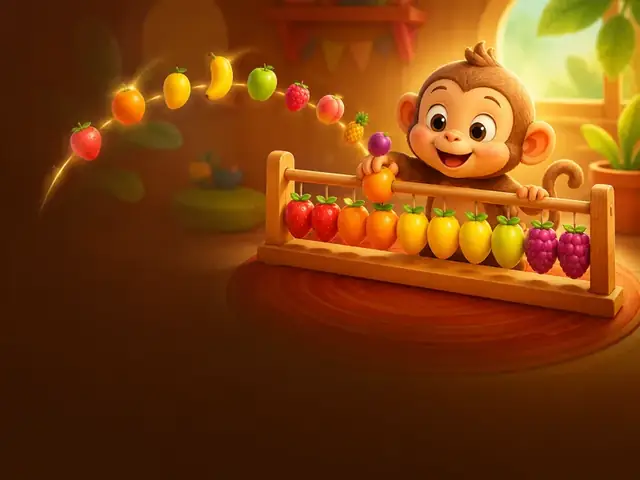
- Counting parade: fruits march in and count themselves from one to ten. (Try the Count to Ten preset.)
- Shape detectives: two characters find circles, squares, and triangles around a playground.
- Sharing snacks: a character splits 12 cookies fairly among friends to introduce division.
Literacy
- Letter of the week: a character finds three things that start with the target sound.
- Rhyme hunt: friends take turns saying rhyming words. See our guide on making a nursery rhyme video for writing rhythmic lines.
- Story sequencing: a three-scene story students retell using "first, next, last."
Science
- Water's journey: a raindrop explains evaporation, condensation, and rain.
- Seasons change: leaves race through autumn into winter.
- Plant needs: a seed asks friends for sunlight, water, and soil.
Social-emotional learning
- Taking turns: a short fable about sharing, like the Share the Sun preset.
- Being brave: a character helps a shy friend join a game.
- Kindness matters: a hero learns kindness beats superpowers.
Languages
- Greetings and manners: a two-character conversation in the target language.
- Colors and numbers: simple, repeated labels with captions.
For more topic inspiration, browse our list of kids YouTube video ideas, many of which work in class too.
A practical workflow in ClipyToons
Here's how a lesson video comes together in the ClipyToons studio, start to finish.
- Type your idea as an objective. For example: "Fruits count from 1 to 10 so preschoolers can match groups to numbers." Or start from a preset.
- Edit the script. The studio writes a kid-friendly script. Apply the review checklist above, then approve.
- Cast characters. Let the studio design characters, or describe them with voice cues like "a cheerful young narrator" or "a calm teacher owl."
- Approve the characters and the place. A classroom, a garden, or a space station: pick a setting that fits the lesson. This planning is free, so take your time. For shot-by-shot control, the optional Advanced view lets you edit, split, merge, or delete shots.
- Pick format and length. Choose 16:9 for a classroom screen or 9:16 for phones. Lengths run from 5 seconds with no 5-minute limit (Starter makes videos up to 1:30 min; Pro Plus and Premium make longer ones).
- Render. Tap Render video to see the price first. If you don't have a plan yet, pick one right there and the video starts as soon as you've paid. A 1-minute video takes roughly 15 minutes to render. Characters speak lip-synced lines, with sound effects and ambience, and captions are burned in by default.
Every idea, script, and shot prompt passes automated kid-safety checks before rendering. The educational videos for teachers page has more classroom-ready prompts.
Checking the finished video before class
Always watch the whole video yourself before students see it. It's the last and most important review. Here's what to look for:
- Did the facts survive? Rendering can shift details. Make sure numbers, labels, and on-screen objects match the script.
- Are the visuals accurate? If the dialogue says "five apples," count the apples on screen.
- Is pronunciation clear? Especially for target vocabulary and non-English versions.
- Do the captions match? Read along once.
- Is the pacing right for your group? Note where you'll pause for questions.
If a single shot isn't right, you don't need to redo the whole video: you can re-render just that shot, which uses credits for that shot's length. Credits are only charged when your finished video is ready — if a shot fails or you cancel, the reserved credits go back to your balance.
Close the loop with students
After watching, ask one question that checks the objective: "Show me with your fingers how many pears there were." The video is a teaching aid. The learning happens in the conversation afterward.
Frequently asked questions
Can AI make accurate educational videos for kids?
AI can draft scripts and visuals quickly, but accuracy depends on your review. Check every fact, number, and example in the script, then watch the finished video before showing it in class.
Can I put my students in the video?
Only with school approval and parent or guardian consent. Photos of students can be sensitive records under privacy rules like FERPA. AI-designed characters or a class mascot are a safer default.
What languages can the characters speak?
Fourteen: English (the default and most consistent), Spanish, Portuguese, French, German, Italian, Dutch, Polish, Czech, Norwegian, Japanese, Korean, Chinese (Mandarin), and Arabic. Set one dialogue language per project before rendering, and have a fluent speaker check the result.
Are captions included?
Yes. Captions are burned into the video by default and can be switched off in the export settings before rendering.
How long should a classroom video be?
Usually 30 seconds to 2 minutes, focused on one learning objective. Short clips are easier to rewatch, pause, and discuss.
Sources
- U.S. Department of Education: Artificial Intelligence and the Future of Teaching and Learning (2023)
- W3C WAI: Captions/Subtitles
- W3C WAI: Understanding Success Criterion 1.2.2, Captions (Prerecorded)
- Gernsbacher (2015), Video Captions Benefit Everyone
- U.S. Department of Education: When is a photo or video of a student an education record under FERPA?
- YouTube Help: Change video privacy settings
Platform policies change. We review this guide regularly; always check the official pages before making decisions.
Turn tomorrow's lesson into a short cartoon
Start from the Count to Ten preset or type your own objective. Planning is free, so you can review the script and characters before rendering.
Planning is free — you pay when you render · monthly plans from $19.99